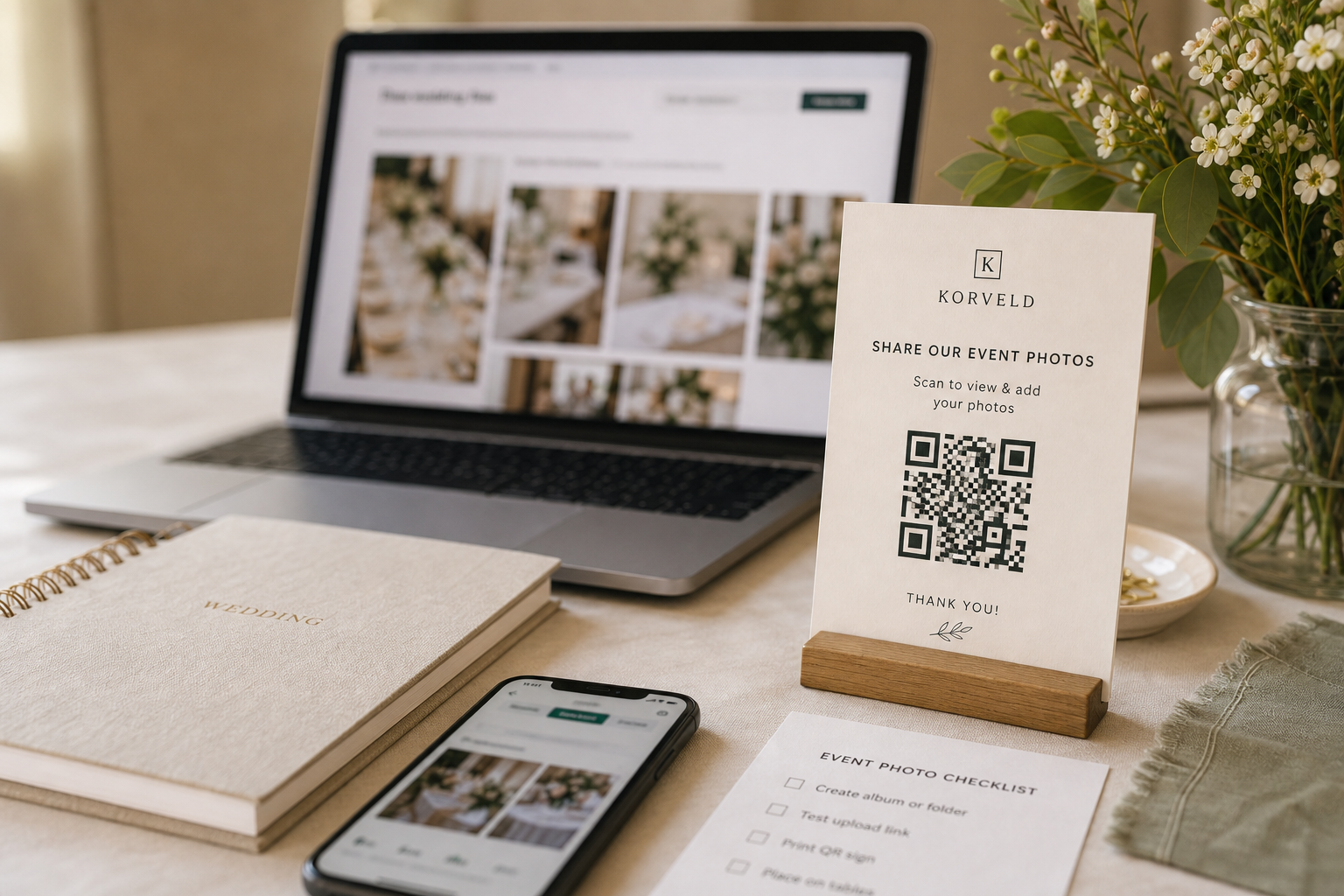
Google Photos is familiar, which helps. The risk is that guests may see different behavior depending on their device, account state, and the type of link you created. That is why the setup test matters more than the QR code itself.
Korveld can turn the link into a sign, but it cannot change Google Photos permissions. Test the guest path first, then print.
Google Photos QR setup checklist
Use wording that fits Google Photos
If the link lets guests add photos easily, say that. If it mainly opens a shared album, use wording like "open the album" or "add photos if prompted." Clear wording prevents guests from feeling like the sign promised one thing and the link did another.
Scan to open our wedding photo album.
Scan to add a few favorite photos if prompted.
Open the album here and send us your favorite candid photos.
Use this Google Photos link for guest photos from tonight.
Test with the least-prepared guest in mind
Do not test only from your own phone. Use another phone or browser where you are not signed into the account that owns the album. If the link asks for sign-in, decide whether that is acceptable before printing signs for the whole reception.
If the Google Photos flow feels too complicated for your guest list, consider a Dropbox request, Drive workflow, or hosted event gallery instead. The best choice is the one guests can actually complete.
Ready to print
After the link test, make the sign.
Paste the Google Photos link into the free generator. Add matching table cards only if you want the request repeated around the reception.
Quick answers
Can I use Google Photos for a wedding QR code?
Yes. Copy the album or request link, test it from a guest device, and use wording that matches what guests can do after scanning.
Will guests need a Google account?
It depends on the Google Photos link and permissions. Test from a phone that is not signed into your account before printing.
Does Korveld upload photos to Google Photos?
No. Korveld makes the printable QR sign. Google Photos controls viewing, uploading, permissions, and storage.